How to Export AI 3D Models to Roblox with Correct Scale
Ever spent hours creating the perfect AI 3D model only to watch it import into Roblox Studio as a giant monster or microscopic speck? You're not alone—scale issues plague 90% of first-time Roblox creators, turning excitement into frustration faster than you can say "100x too big!"
Here's the reality: When you export 3D models to Roblox without proper settings, that sleek character model becomes a 100-stud colossus, or worse, an invisible dot. But what if you could nail the perfect scale every time, transforming your AI-generated 3D models into game-ready assets in minutes?
This guide reveals the exact export settings, scale conversions, and workflow secrets that professional Roblox developers use daily. Whether you're using Tripo AI to generate models in seconds or importing from other sources, you'll master the art of perfect scaling—no more guesswork, no more frustration.
Understanding Roblox's Scale System
Before diving into export settings, let's decode why your models arrive in Roblox looking like they've been hit with a shrink ray or growth potion, especially if you used a free best image to 3d model ai free converter or ai generated 3d models.
The Unit Mismatch Problem
Roblox operates on a unique unit system called "studs"—think of them as Roblox's version of meters or feet. Here's where things get tricky:
- 1 Blender unit = 100 Roblox studs (by default)
- 1 meter in real world ≈ 20 studs in Roblox
- Average Roblox character = 5 studs tall
This means when you export 3D models to Roblox using default settings, that perfectly sized character becomes a 500-stud giant! It's like expecting inches and getting meters—chaos ensues.
Supported File Formats for Roblox
Not all 3D formats play nice with Roblox Studio. Here's what works:
| Format | Best For | Scale Handling | Animation Support |
|---|---|---|---|
| .FBX | Complex models with rigs | Requires specific settings | ✅ Full support |
| .OBJ | Static props and buildings | More predictable | ❌ No animation |
| .glTF/.glb | Web-optimized models | Newer, reliable | ✅ Full support |
Pro tip: Use FBX for animated characters and OBJ for simple static props to avoid unnecessary complexity.
Preparing Your AI-Generated Models
Step 1: Generate Your Model with Tripo AI
When creating models for Roblox using Tripo AI, keep these quick optimization tips in mind:
Quick Setup for Roblox-Ready Models:
- Use Roblox-specific terms in your prompts ("low-poly", "cartoon-style", "game asset")
- Ensure output stays under 10,000 triangles (Roblox's limit)
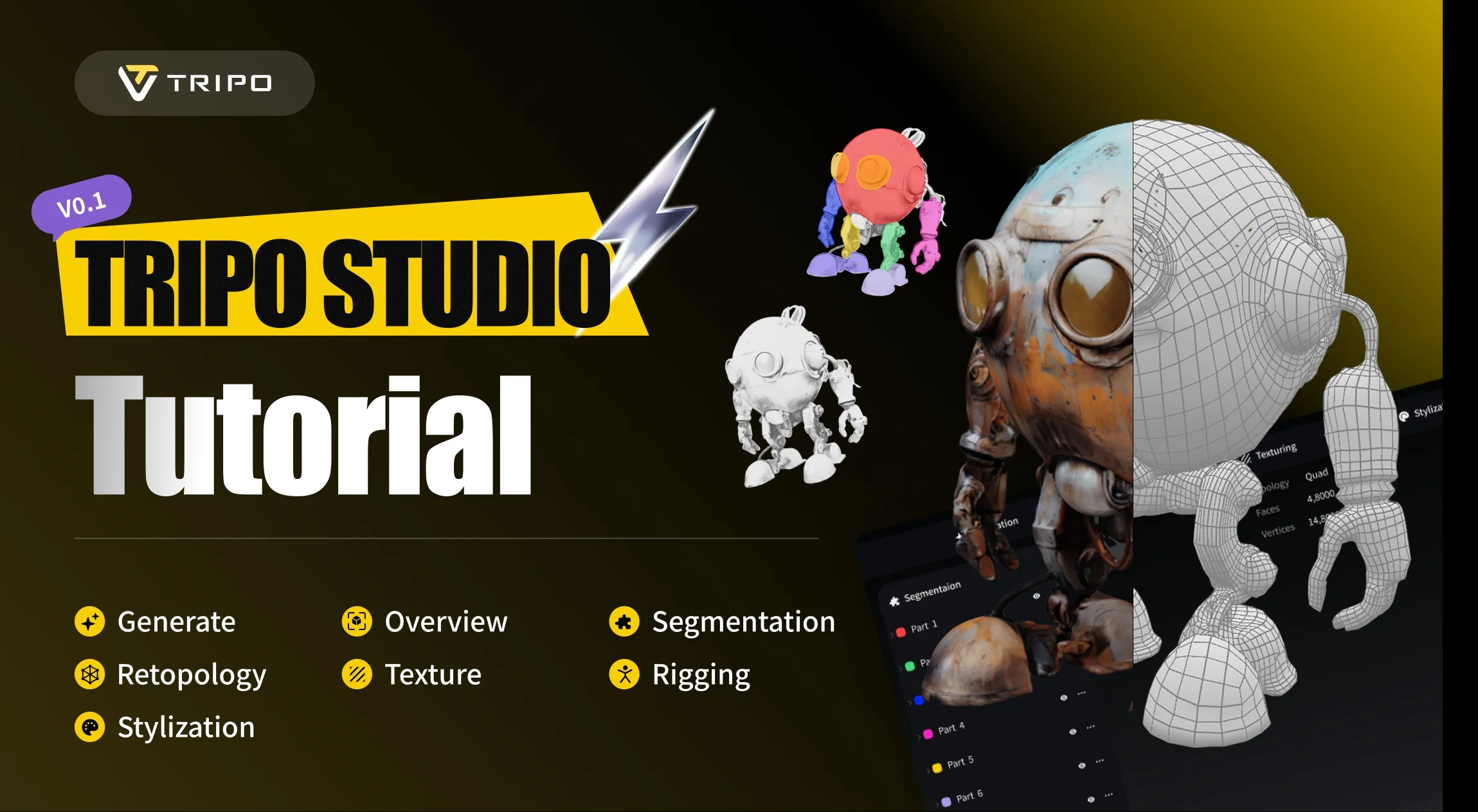
Tripo AI generates your model in 8-10 seconds, while Algorithm 2.5 ensures professional quality that matches Roblox's aesthetic. For detailed instructions on using Tripo Studio's full capabilities—including Magic Brush, Smart Low-Poly, and texture optimization—check out the complete Tripo Studio tutorial.
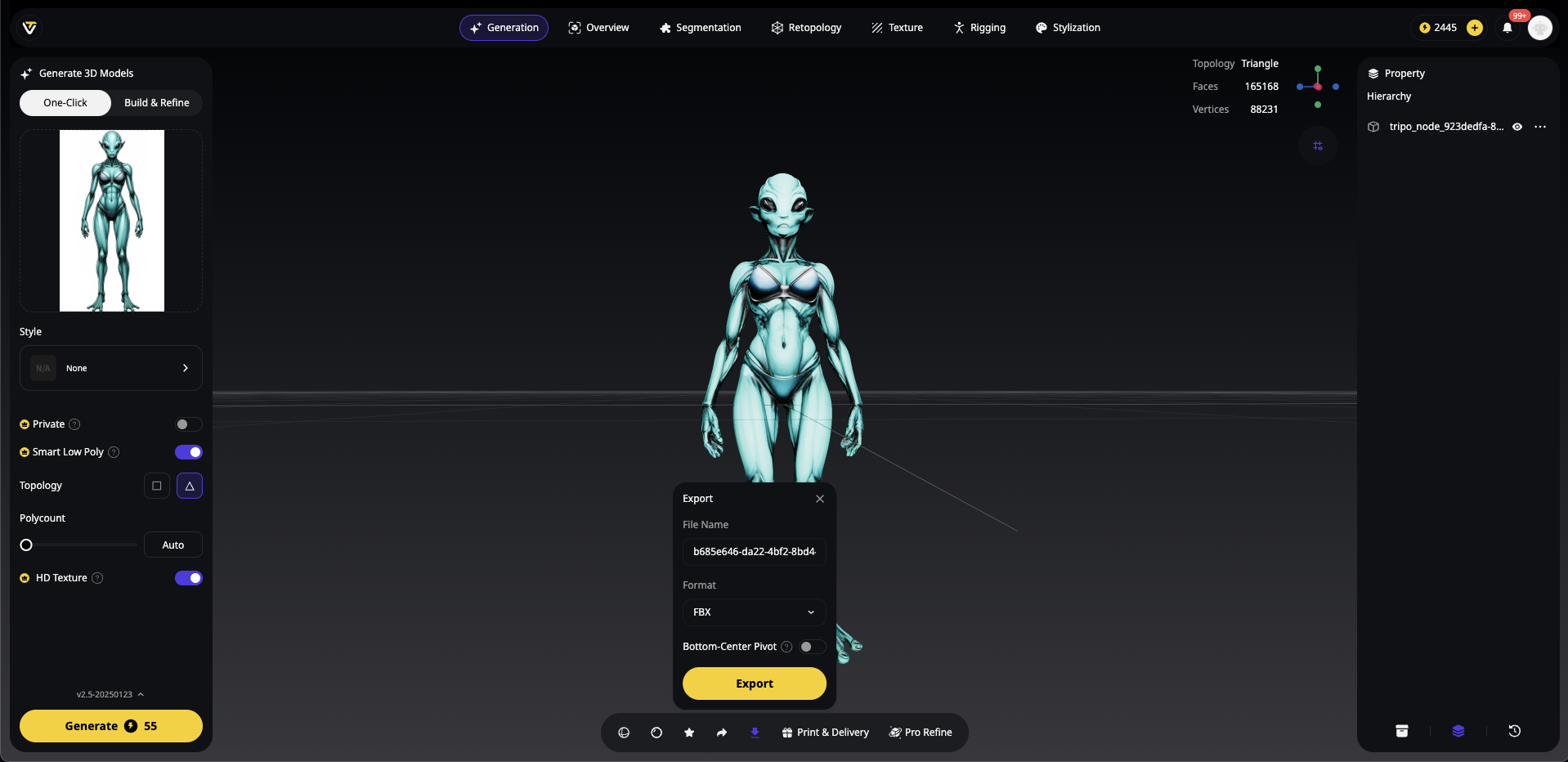
Step 2: Post-Processing in Tripo Studio
Tripo Studio offers powerful tools to prepare your model for Roblox:
- Magic Brush: Quickly adjust textures for Roblox's cartoon aesthetic
- Smart Low-Poly: Automatically reduce polygon count while preserving detail
- Intelligent Segmentation: Separate model parts for modular building
The beauty of using AI 3D model generators like Tripo? You skip hours of manual modeling while maintaining professional quality.
The Ultimate Export Settings Guide
Blender to Roblox: Three Methods That Actually Work
Method 1: FBX Unit Scale (Roblox Official Recommendation)
This is the gold standard for Roblox 3D model scale accuracy:
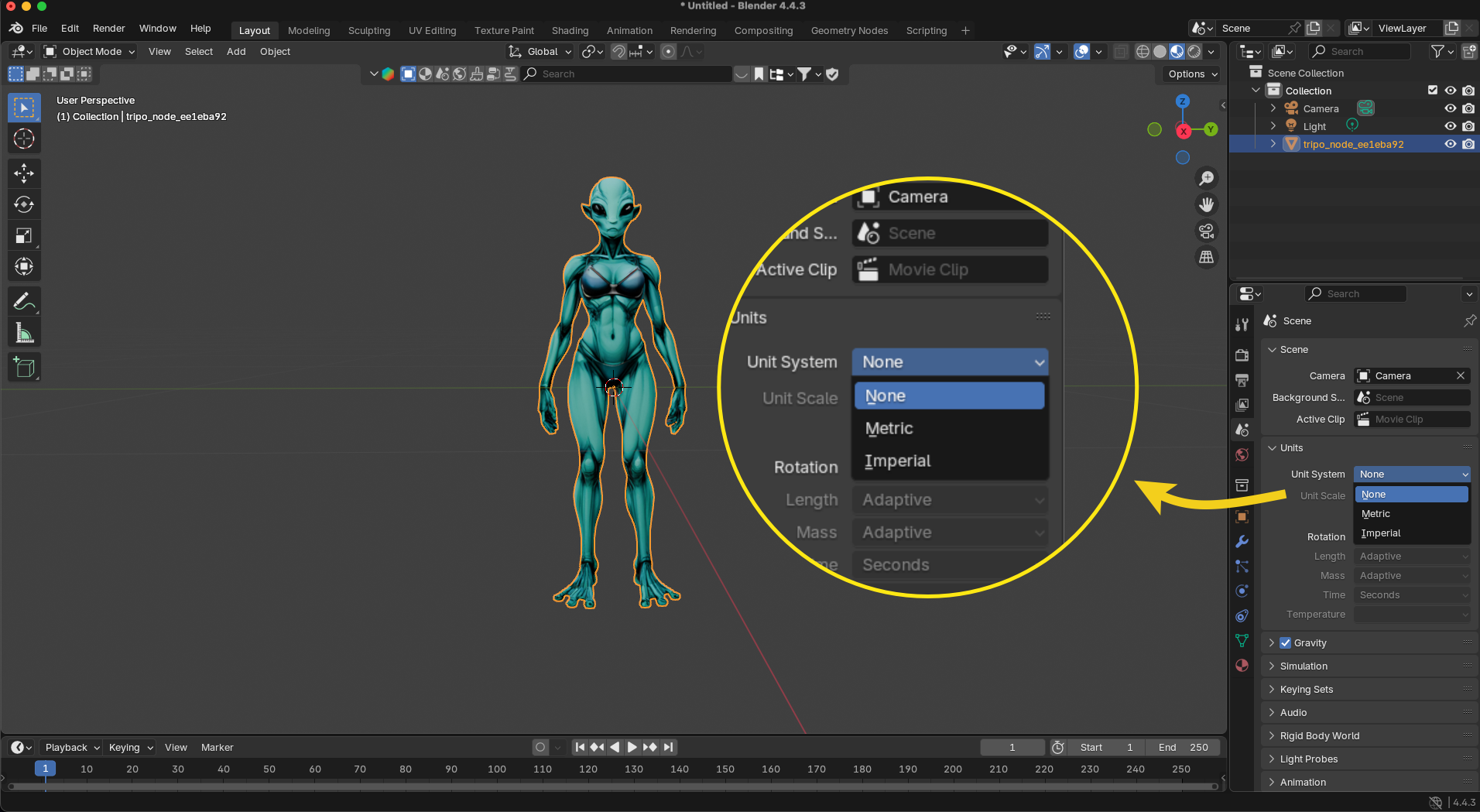
- Scene Setup:
- Units: Set to "None" or "Metric"
- Unit Scale: Keep at 1.0
- Rotation: Degrees
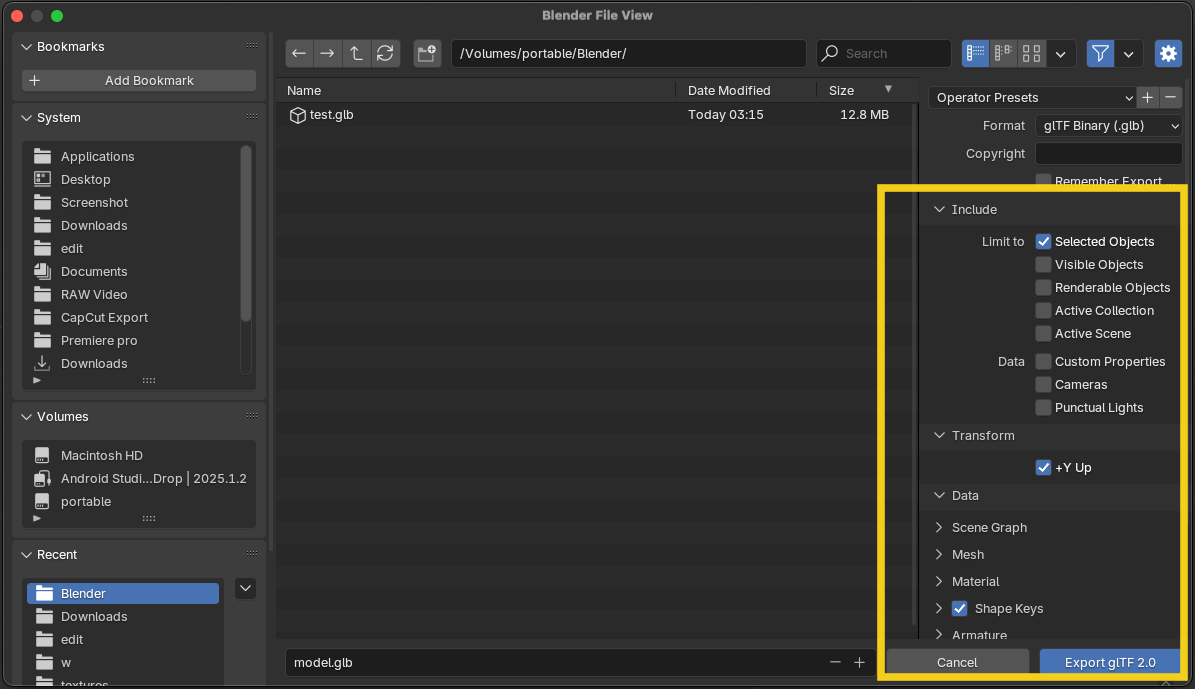
- Export Settings (File > Export > glb):
- Transform > +Y Up
- Forward: Z Forward
- Up: Y Up
- Include > Selected Objects Only
- Why It Works: Models maintain correct scale when re-imported to Blender or other software
Method 2: Manual Scale Adjustment
Quick and dirty, but effective:
- Select your model in Blender
- Press 'S' then type "0.01" (scales down to 1/100)
- Export with default FBX settings
Warning: Models will appear tiny if imported back to Blender!
Method 3: Scene Unit Scale
For batch exports:
- Scene Properties > Units > Unit Scale: 0.01
- Export normally
- Remember to reset for other projects!
FBX Export Settings Roblox Loves
Here's your copy-paste checklist for perfect FBX export settings Roblox requires:
✅ Transform:
   - Apply Scaling: FBX Unit Scale
   - Forward: Z Forward
   - Up: Y Up
   - Apply Transform: ✓

✅ Geometry:
   - Smoothing: Face
   - Export Subdivision: ✗
   - Apply Modifiers: ✓

✅ Armature:
   - Only Deform Bones: ✓
   - Add Leaf Bones: ✗
   - Bake Animation: ✓ (if animated)
Importing to Roblox Studio: The Right Way
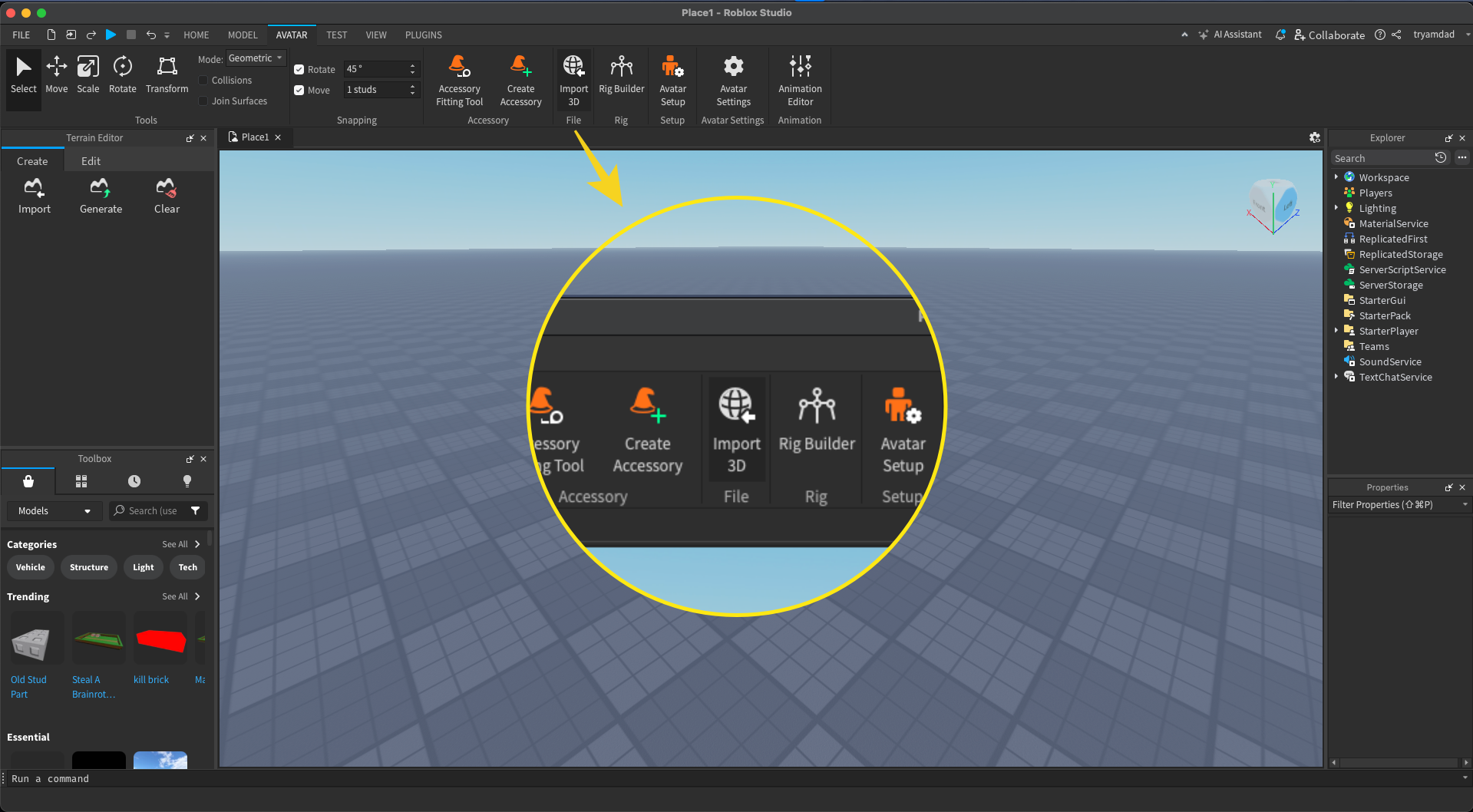
Step 1: Open Import Dialog
- Launch Roblox Studio and open your place
- Navigate to the Avatar tab → Import 3D
- Alternative method: View → Asset Manager → Import
Step 2: Select Your Model
- Click "Choose File" and locate your exported .fbx file
- The file should appear in the preview window
- Check that textures are displaying correctly
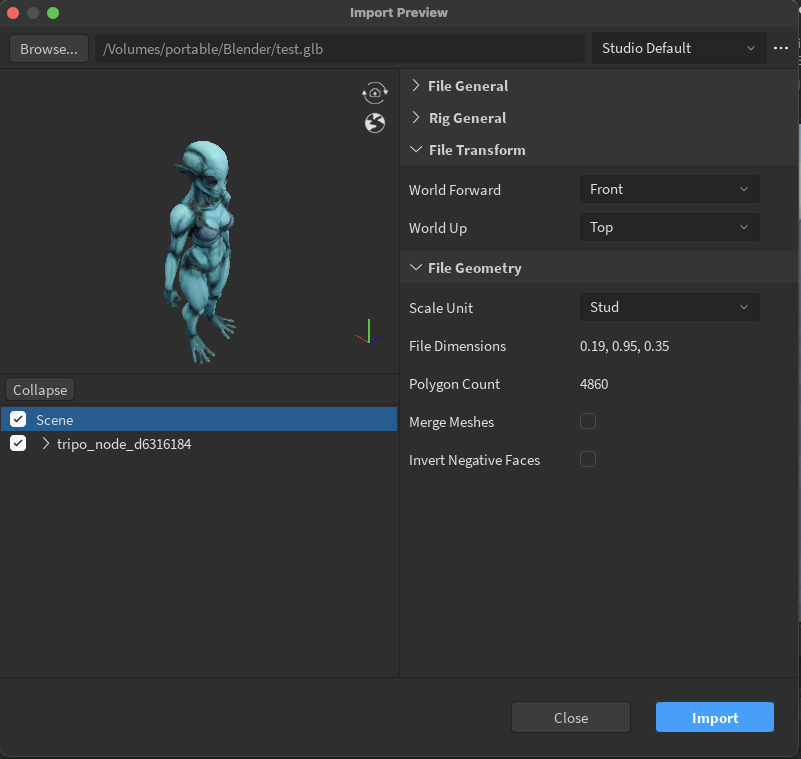
Step 3: Configure Import Settings
Set these exact values for proper Roblox Studio 3D import:
- World Forward: Front
- World Up: Top
- Scale Unit: Stud (This is crucial!)
Leave other settings at the defaults unless specific needs
Step 4: Complete Import
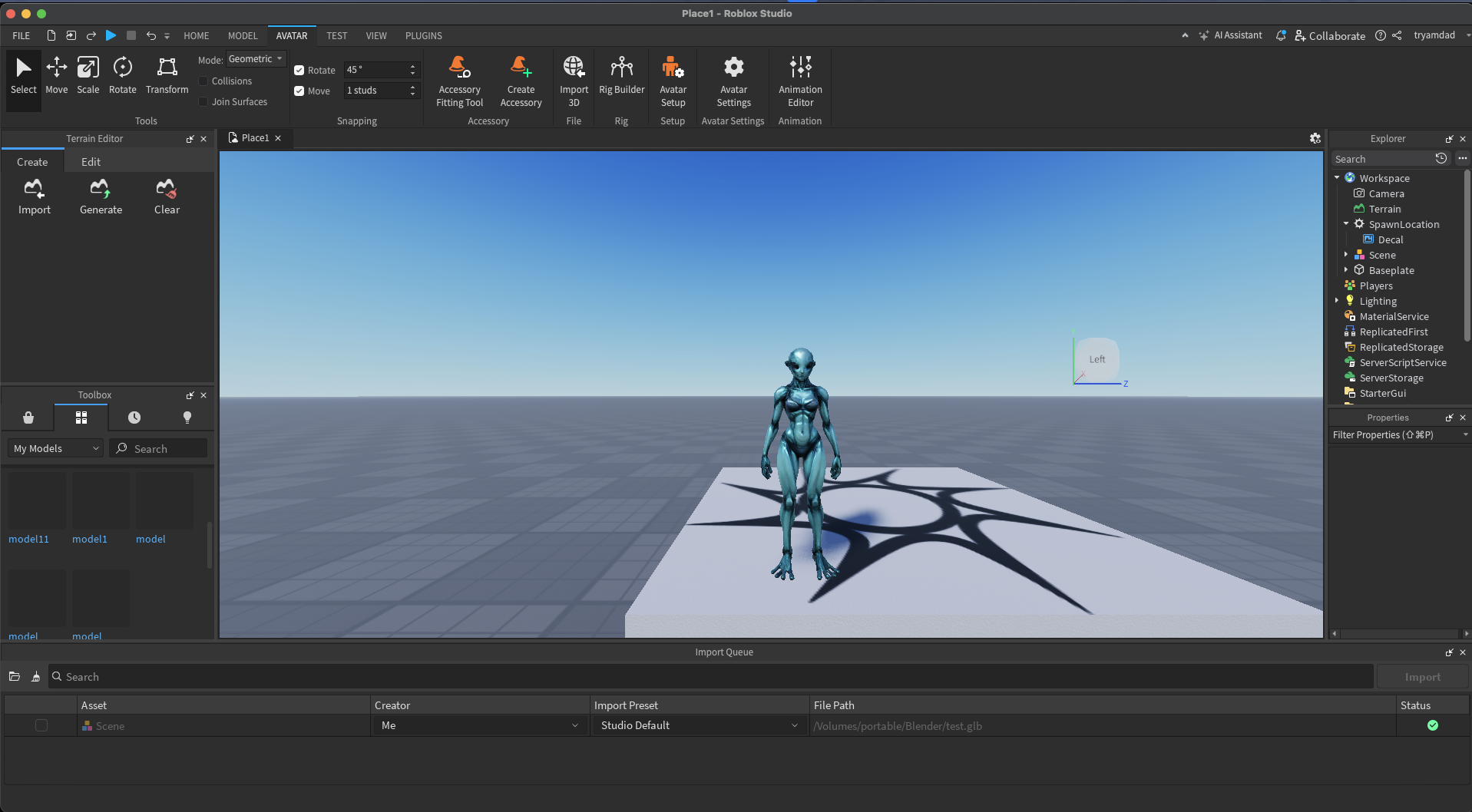
- Click the "Import" button
- The model will appear in Workspace
- Check the Explorer window to see imported parts
Post-Import Verification
After importing, verify your scale:
- Insert a default Roblox part (Part > Block)
- Compare sizes—your model should be proportional
- Test with a Roblox character (should be ~5 studs tall)
Troubleshooting Common Scale Issues
Problem: Model Imports 100x Too Large
Solution: You forgot to apply FBX Unit Scale or manual 0.01 scaling
Quick Fix:
- Select model in Explorer
- Properties > Size > Multiply all values by 0.01
- Use F3X plugin for uniform scaling
Problem: Model Too Small to Select
Solution: Scale values went below 0.001 (Roblox minimum)
Quick Fix:
- Properties > Size > Set all values to at least 0.1
- Scale up from there
Problem: Uneven Scaling (Stretched/Squashed)
Solution: Non-uniform scaling applied somewhere
Quick Fix:
- Select all model parts
- Use uniform scaling (hold Shift while scaling)
- Reset and re-export if needed
Advanced Optimization for AI Models
Performance Considerations
AI 3D models for Roblox need special attention to performance:
| Element | Roblox Limit | Optimization Tip |
|---|---|---|
| Triangles | 10,000 max | Use Tripo's Smart Low-Poly |
| Texture Size | 1024x1024 optimal | Compress in Tripo Studio |
| Draw Calls | Minimize | Combine materials |
| File Size | Under 100MB | Use .glb format |
Tripo AI Workflow for Roblox
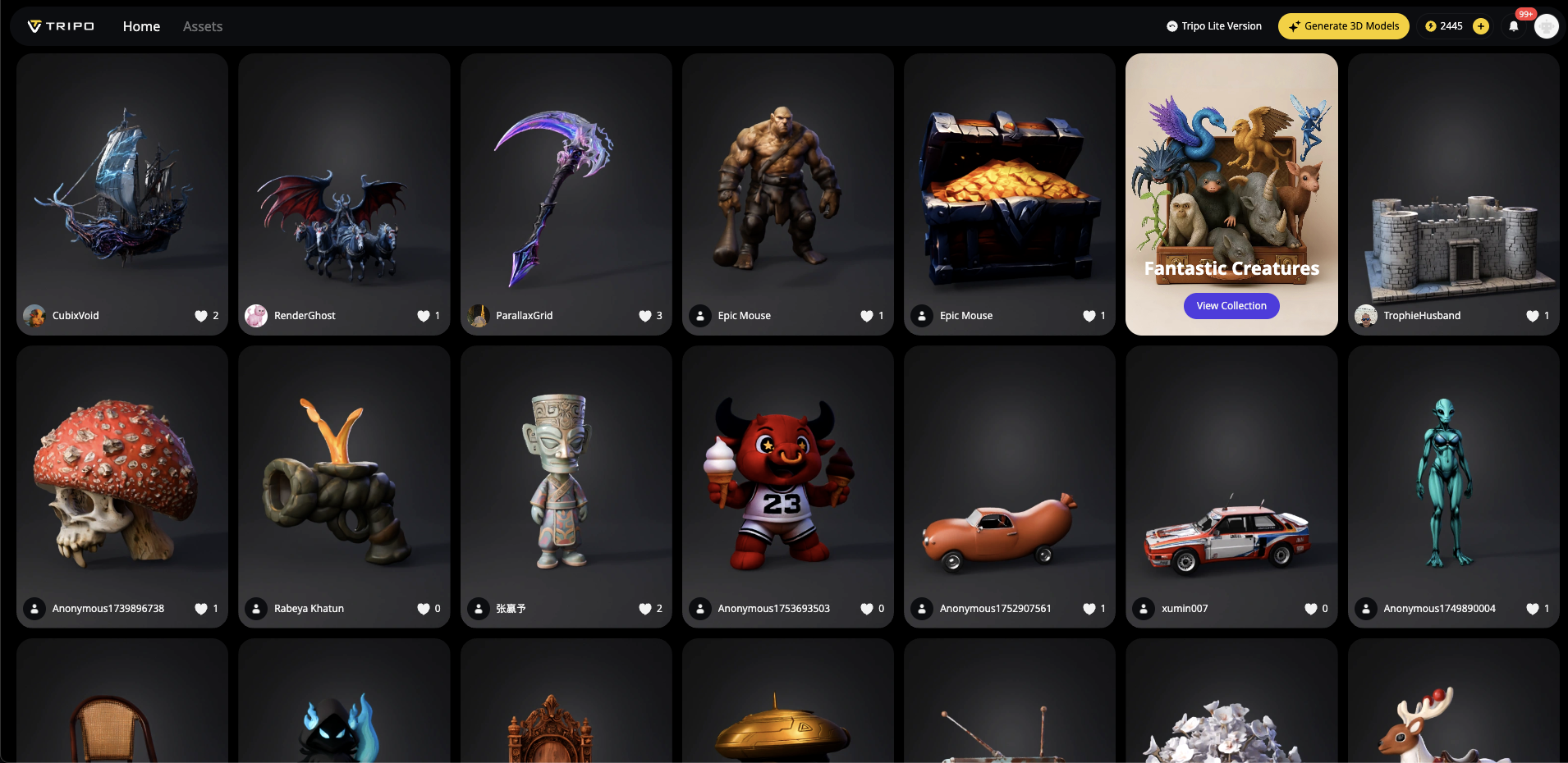
Here's the optimized pipeline using Tripo AI:
- Generate in Tripo (8 seconds):
- Use "Roblox-style cartoon character" in prompts
- Select "Game Asset" quality preset
- Refine in Tripo Studio:
- Apply Smart Low-Poly (targets < 10k triangles)
- Use Magic Brush for Roblox-friendly textures
- Export as FBX with proper settings
- Import to Roblox:
- Follow our scale settings above
- Test in Studio before publishing
Best Practices Checklist
Before hitting that export button, run through this list:
Pre-Export:
- [ ] Model under 10,000 triangles
- [ ] Textures compressed and optimized
- [ ] Applied all modifiers in Blender
- [ ] Checked scale against reference object
- [ ] Set proper export settings (FBX Unit Scale)
During Import:
- [ ] Selected "Stud" as Scale Unit
- [ ] Enabled "Import Only as Model"
- [ ] Verified import preview looks correct
Post-Import:
- [ ] Compared size to default Roblox parts
- [ ] Tested with player character
- [ ] Checked performance (60+ FPS)
- [ ] Verified all textures loaded
Why Tripo AI Changes the Game
Traditional 3D modeling for Roblox takes hours—sketching, modeling, texturing, optimizing. With Tripo AI, you compress this into minutes:
- 8-second generation: From idea to 3D model
- Tripo Studio editing: Professional tools without the learning curve
- Algorithm 2.5 quality: Models that rival hand-crafted assets
- Built-in optimization: Export settings designed for game engines
Over 2 million creators already use Tripo to accelerate their workflow. When combined with proper export knowledge, you're unstoppable.
Conclusion: Scale Mastery Unlocked
Exporting AI 3D models to Roblox with perfect scale isn't rocket science—it's about knowing the right settings and following a proven workflow. By combining Tripo AI's lightning-fast generation with proper export techniques, you'll transform from scale-struggling amateur to confident creator.
Remember: FBX Unit Scale is your best friend, 10,000 triangles is your limit, and testing with reference objects saves hours of frustration. Whether you're building the next Roblox sensation or just experimenting, these techniques ensure your models arrive camera-ready.
Ready to revolutionize your Roblox development? Try Tripo Studio today and join millions of creators who've discovered the fastest path from imagination to in-game assets. Your perfectly scaled Roblox world awaits—what will you build first?
You May Also Like: More About Image to 3D Model
Master the art of AI-generated 3D models with Tripo3D. This guide provides step-by-step instructions on setup, model exporting, and troubleshooting, helping you streamline and enhance your 3D workflow.
 Maisie
Discover how Tripo, the AI-driven 3D model generator, transforms your photos into highly detailed 3D models effortlessly.
Maisie
Explore how AI technology transforms a simple image into a detailed 3D model. Learn about the tools, techniques, and industries that benefit from this fascinating process.
MaisieIf you want to bring your Tripo-generated assets directly into Roblox Studio without manual export steps, check out the Tripo DCC Bridge for Roblox — it covers installation and a quick-start workflow.